
Paneel voor teksteigenschappen
Met het Paneel voor teksteigenschappen kan men de teksteigenschappen van de nu geselecteerde tekstobjecten bewerken met naar keuze Gereedschap voor selectie van vormen of de Hulpmiddel Tekst. Ga naar Werken met tekst voor een overzicht van alle mogelijkheden.
Het paneel heeft drie tabs: Paragraaf, Karakter en Voorinstelling.
Paragraaf zal de standaard eigenschappen voor de hele paragraaf bewerken, en bevat zowel de Paragraaf-eigenschappen als de Karakter eigenschappen. Deze kunnen met beide onderdelen worden bewerkt.
Karakter zal de eigenschappen van het geselecteerde woord of reeks bewerken en bewerkt alleen de Karakter eigenschappen. Deze zijn alleen beschikbaar bij het bewerken met de Hulpmiddel Tekst.
En tenslotte, met Voorinstelling kunt u voor de tekst Voorinstellingen creëren en daarop toepassen. Ga naar Voorinstellingen van stijl. voor meer informatie.
Standaard zullen de eerste twee tabs alleen een handvol van de basis eigenschappen tonen, terwijl de overige eigenschappen alleen worden getoond nadat ze zijn ingesteld, of overgeërfd.
De knop voor ongedaan maken links van een geselecteerde eigenschap geeft een indicatie of een eigenschap is gewijzigd, en door erop te klikken zal de betreffende wijziging ongedaan maken. Als er diverse stijleigenschappen zijn geselecteerd, dan zal men een meerkoppige pijl zien, terwijl de controle zelf de standaard of geërfde waarde zal tonen. Het wijzigen van de controle zal dezelfde waarde bij alle eigenschappen invoeren, terwijl het klikken op de knop voor ongedaan maken de eigenschap van alle tekst ongedaan zal maken.
Nieuwe eigenschappen kunnen worden toegevoegd met de Eigenschap toevoegen-keuzelijst eronder. Met het tekstinvoervak kan naar de geselecteerde teksteigenschappen gezocht worden, waarbij elk eigenschap een aantal alternatieve trefwoorden heeft. Als voorbeeld, het invoeren van “onderstrepen” zal ook de Tekstdecoratie tonen, waar de :optie guilabel:Onderstrepen een onderdeel van is. De selectie van Tekstdecoratie zal de eigenschap aan de lijst toevoegen, zodat deze ingesteld kan worden.
De zichtbaarheid van elke eigenschap kan ingesteld worden door de configuratieknop in te drukken naast de Eigenschap toevoegen-keuzelijst. Als de standaard zichtbaarheid is ingesteld op “Altijd zichtbaar” en geen van de individuele eigenschappen is ingesteld op voorwaardelijk, dan wordt de Eigenschap toevoegen-keuzelijst vervangen door een filter-invoervak. De geselecteerde zichtbaarheid mogelijkheden zijn:
- Standaard volgen
De eigenschap zal de standaard status voor zichtbaarheid bovenaan het configuratievenster volgen.
- Altijd zichtbaar
De eigenschap zal altijd zichtbaar zijn.
- Indien ingesteld
De eigenschap is alleen zichtbaar nadat het ingesteld is.
- Wanneer relevant
De eigenschap is alleen zichtbaar nadat het ingesteld is of als het overgeërfd is.
- Nooit weergeven
De eigenschap zal nooit zichtbaar zijn.
Overerving
Krita’s tekstvormen gebruiken CSS, waardoor de eigenschappen ervan overgeërfd kunnen worden. Dit houd in dat de eigenschappen zoals lettergrootte voor een hele tekstvorm ingesteld kunnen worden, en dat tekstreeksen in deze vorm standaard deze overgeërfde waarde als ze niet duidelijk voor deze reeks is ingesteld.
Overerving is handig omdat we daarmee voor een bepaalde sectie alleen een set eigenschappen die belangrijk zijn kunnen instellen. Daardoor kunnen we een tekstreeks benadrukken met cursief in de Karakter-tab, terwijl we met de Paragraaf-tab de lettergrootte of de lettertypefamilie voor de hele tekst kunnen instellen zonder dat we nadruk op tekstreeks verliezen.
Enkele eigenschappen daarentegen overerven helemaal niet, bijvoorbeeld Basislijnverschuiving. Meestal worden deze eigenschappen op elkaar gestapeld, maar hun precieze gedrag wordt beschreven in hun item.
Lettertype-Relatieve Eenheden
Bij enkele eigenschappen kan lettertype-relatieve eenheden gebruikt worden. De betekenis van de eenheden is ook afhankelijk van het overerving-systeem. Alle lettertype-relatieve eenheden zullen proberen om de geselecteerde lettertype metrics te gebruiken. Echter, als de betreffende lettertype metric is Em en de eigenschap die wordt bewerkt is Tekengrootte, dan zal het relatief zijn ten opzichte van de overgeërfde lettergrootte. Vergelijkbaar met Lh en Lijnhoogte.
Lettertype-relatieve eenheden zijn met name bruikbaar bij Afstand tussen letters, die vaak relatief ten opzichte van de Em grootte wordt ingesteld. Vergelijkbaar is het heel normaal om super scripted tekst in te stellen op 0.5 Em (zodat het de helft is van een normale lettergrootte), of om Shape Padding ingesteld te hebben op 1 Ex.
- Em
De huidige lettergrootte (of overgeërfde lettergrootte in het geval van Lettergrootte).
- Ex
De huidige x-hoogte van de body. Deze metric is afkomstig van het lettertype en wordt beïnvloed door de lettergrootte.
- Cap
De huidige hoogte van de hoofdletter. Deze metric is afkomstig van het lettertype en wordt beïnvloed door de lettergrootte.
- Lh
De lijnhoogte. Deze is relatief ten opzichte van de geselecteerde lijnhoogte of, in het geval van de Lijnhoogte, de overgeërfde lijnhoogte.
- Ic
Relatief tot de Advance van het ideografische karakter. De advance van een enkele CJK-karakter.
- Ch
Advance van het getal ‘0’.
Karakter eigenschappen
Karakter eigenschappen zijn eigenschappen die kunnen worden toegepast op een tekstreeks of op een hele paragraaf.
Tekengrootte
Met de tekengrootte kan de grootte van de karakters worden ingesteld. Het verschaalt met name het hele lettertype zodat de ontwerpgrootte (de “em grootte”) hetzelfde is als de lettertypegrootte.
Bij gebruik van de Lettertype-Relatieve Eenheden, zal de lettertypegrootte altijd de overgeërfde lettertypegrootte en de familie als het referentie-lettertype gebruiken. Dit kan worden gebruikt om te zorgen dat een tekstreeks altijd een beetje groter of een beetje kleiner is dan de omringende tekst, wat handig kan zijn bij superscript of titels.
Standaard is deze eigenschap altijd zichtbaar.
Aanpassen van tekengrootte
Door het aanpassen van de tekengrootte kan een verhouding worden opgegeven waarmee de x-hoogte moet overeenkomen. De x-hoogte is de hoogte van de kleine letter x in het latin-lettertypen, dit is een waarde die wordt afgeleid uit de lettertype-metrics.
Dit is met name handig bij gebruik van een lettertype-fallback, maar kan ook handig zijn in het algemeen om een soort consequentheid voor de x-hoogte te krijgen. Er is een Berekenen-knop, waarmee men de verhouding van de lettertypegrootte voor de geselecteerde lettertypefamilie kan berekenen.
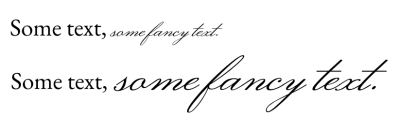
Script lettertypen hebben meestal een veel kleinere x-hoogte dan de standaard gewone tekst-lettertypen. Door Aanpassen van tekengrootte te gebruiken en door op Berekenen te drukken, kunnen we de tekst zo instellen dat ze een vergelijkbare x-hoogte hebben.
Lettertypefamilie
Met lettertypefamilies kunnen een lijst met lettertypen opgesteld worden die gebruikt zouden kunnen worden voor de geselecteerde tekst. Het eerste item in de lijst is de primaire lettertype die gebruikt wordt, terwijl elk volgende lettertype als reserve gebruikt kan worden.
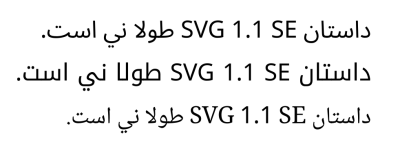
Veel lettertypen hebben alleen glyphs voor een gedeelte van unicode, zodat daarmee lettertypen geselecteerd kunnen die in een vergelijkbare traditie hebben, zoals het gebruik van een Serif Latin lettertype voor een Naskh Arabic lettertype.
Ga naar Lettertypefamilies voor meer informatie over selectievenster voor lettertypen en lettertypefamilies.
Standaard is deze eigenschap altijd zichtbaar.
Lettertypestijl
Lettertypestijl biedt het instellen van de substijl van de gegeven lettertypefamilie, zoals cursief en vet.
De hoofdbesturing is een keuzelijst met voorgedefinieerde stijlen. Deze worden bepaald door de lettertypen in een familie, of door voorkomende gevallen in een Variabele Lettertype. Door op een hiervan te klikken zal de bijbehorende CSS-eigenschappen van de betreffende stijl worden overgenomen.
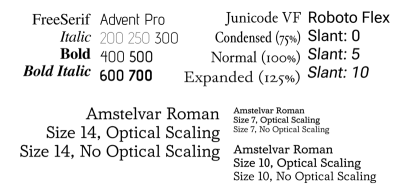
De afbeelding hierboven toont een aantal stijlen. De bovenste rij toont de effecten van breedte, gewicht en helling, terwijl de onderste rij de effecten toont van de optische grootte bij verschillende lettergroottes.
Bij het uitvouwen van deze eigenschap komen de volgende instellingen beschikbaar:
- Gewicht
Dit regelt de dikte van de omtrek van een glyph.
- Vet synthetiseren
Hiermee kunnen dikke glyphs gesynthetiseerd worden als er geen vet in de lettertypefamilie aanwezig is.
- Breedte
Dit regelt hoeveel horizontale ruimte een glyph inneemt. Niet alle lettertypen kunnen hiermee overweg, en er is geen formule hiervoor.
- Hellend
Dit kan zijn Normaal, Cursief of Schuin. Het verschil tussen Cursief en Schuin is dat de eerste overeenkomt met een glyph-stijl dat doet denken aan de Italiaanse Kalligrafie stijl, terwijl de laatste een schuine versie is van de normale glyphs.
Als Schuin is geselecteerd, dan de hoek ook worden ingesteld. Dit wordt hoofdzakelijk gebruikt bij variabele lettertypen die met de hellende as overweg kunnen .
- Hellend synthetiseren
Hiermee kunnen schuine glyphs gesynthetiseerd worden als er geen cursieve of schuine versie van de glyphs aanwezig zijn.
- Optische grootte
Dit bepaalt of de as voor optische grootte in Variabele Lettertypen gesynchroniseerd wordt met de lettergrootte. Merk op dat Krita de waarden op de assen interpreteert als zijnde in punten.
En tenslotte is er nog een ruimte voor de extra assen. Deze kunnen gebruikt worden bij variabele lettertypen, zodat er nog meer configuratiemogelijkheden zijn voor het lettertypestijl.
Deze eigenschap is standaard altijd zichtbaar.
Afstand tussen letters
De afstand tussen letters regelt de afstand tussen zichtbare groepen karakters. Er zijn subtiele verschillen hoe de afstand tussen letters worden geïmplementeerd door programma’s die met CSS overweg kunnen. Krita’s implementatie volgt CSS-Text-3 en is dus niet van toepassing op enkele karakters. Afstand tussen letters is voornamelijk bedoelt op hele groepen karakters.
Spatiëring tussen woorden
De spatiëring tussen woorden regelt de grootte van de woord-scheidende karakters, zoals de spatie-karakter. Het geeft ook ruimte voor andere woord-scheidende karakters, zoals de Ethiopische woord-spatie, Egeïsche Zee woord-scheiders, Oegerische woord-scheiders en ook Fenicische woord-scheiders.
Lijnhoogte
De lijnhoogte regelt de lijnhoogte die voor de tekstreeks wordt gebruikt. Het werkt niet bij voorgepositioneerde SVG 1.1 tekst, maar werkt wel bij voorgeformatteerde tekst waarin harde regelafbrekingen zijn toegepast, of doorlopende tekst voorkomt.
- Normaal
Als dit is ingeschakeld, dan zal Krita proberen om de lijnhoogte te bepalen door elk karakter in een regel te nemen, en de stokhoogte, staartlengte, met daarbij de witruimte metric. De grootste hiervan zal als lijnhoogte worden gebruikt.
- Ln
Lijnhoogte heeft een unieke eenheid: Ln, deze is vergelijkbaar met “normal”, behalve dat het lettertypegrootte gebruikt.
Alle andere eenheden zullen een vaste offset definiëren. Zelfs de Lettertype-Relatieve Eenheden zijn vast ten opzichte van het geselecteerde lettertype en grootte van het element waarop de lijnhoogte is op gedefinieerd.
Bij het gebruik van relatieve eenheden, zal voor de Lijnhoogte de geselecteerde lettergrootte en familie als referentie worden gebruikt. Maar, bij het gebruik van de lijnhoogte eenheid, zal de lijnhoogte de geërfde lijnhoogte als referentie gebruiken.
Regelafbreking
Met Regelafbreking kan ingesteld worden hoe strikt het regelafbreking algoritme werkt. Wordt voornamelijk gebruikt bij CJK-schriften, vereist dat Taal is ingeschakeld. Op dit moment kan Krita niet met Los overweg.
Woordafbreking
Bij woordafbreking is de nauwkeurige afstelling van de regelafbreking mogelijk waarbij alleen tussen twee woorden wordt afgebroken of dat er tussen twee karakters kan worden afgebroken. Dit is handig bij Koreaans en bij Ethiopisch.
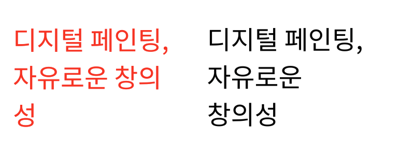
Krita slogan in Koreaans. Aan de linkerkant is er het standaard gedrag, waarbij na elke hangul cluster wordt afgebroken. Dit ziet er nogal ouderwets uit. Door de woordafbreking in te stellen op Alles behouden, zullen woordafbrekingen alleen plaats vinden na een woord-einde.
Teksttransformatie
Met Teksttransformatie kan een geselecteerde reeks karakters worden getransformeerd, bijvoorbeeld, door ze naar hoofdletters om te zetten, of door halve-breedte karakters vervangen door volle breedte karakters. Dit is handig als dit wordt toegepast als stilistisch effect, wat inhoud dat elke tekst automatisch wordt getransformeerd.
Teksttransformatie is gevoelig voor het feit of dat de Taal is ingesteld. Bijvoorbeeld, de Turkse i zonder stip zal worden getransformeerd met de I terwijl de normale i zal worden getransformeerd naar een I met stip.
- Hoofdletters
Dit bepaalt of alle tekst wordt getransformeerd naar hoofdletters of naar kleine letters. In het geval van Hoofdletters maken zal de eerste letter na elke woordscheiding een hoofdletter gemaakt worden, terwijl de rest kleine letters blijft.
- Volledige breedte
Volledige breedte verwijst naar de “volle-breedte” code punten in de Halve-breedte en volle-breedte unicode blok. Dit inschakelen houdt in dat de proportionele of halve-breedte glyphs vervangen zullen worden door indien mogelijk de volledige breedte glyphs. Normaal gesproken zullen in verticale tekst, proportionele glyphs worden geroteerd, maar als dit niet mogelijk of niet nodig is, dan zal het gebruik van volledige breedte glyphs er veel beter uit zien. De functie voor volledige breedte opentype doet iets vergelijkbaar, maar niet ieder lettertype kan ermee overweg.
- Volledige grootte van Kana
Bij Japanse Kana schriften, zijn er enkele gevallen met kleine en grote kana, die subtiel verschillende uitspraak hebben. Echter, als de tekst heel klein is, dan kan het handig zijn om kleine kana te vervangen door grote kana voor een betere leesbaarheid.
Tekstdecoratie
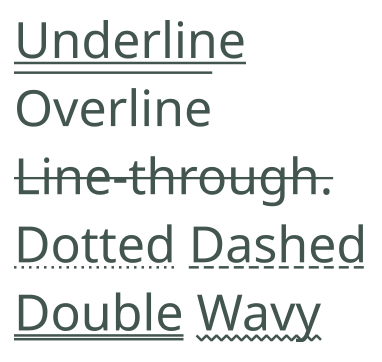
De voorbeelden tonen alle mogelijke decoraties maar ook alle lijnstijlen.
Met tekstdecoratie kunnen onderstrepingen, bovenstrepingen en doorstrepingen gemaakt worden.
- Lijn:
Bepaalt of onderstrepen, bovenstrepen, doorstrepen doorhalen is ingeschakeld. Er kunnen meerdere tegelijk ingeschakeld zijn.
- Kleur:
Bepaalt de kleur van de onderstreping. Indien uitgeschakeld, zal de kleur van de decoratie de tekstkleur volgen.
- Stijl:
De stijl van de lijnen. Deze is beschikbaar voor alle ingeschakelde lijnen, ze kunnen als met streepjes, gestippeld, slingerend en zelf dubbele lijnen getrokken worden.
Tekstdecoratie overerft niet. Het wordt in plaats daarvan toegepast op elke tekstreeks waarvoor het wordt toegepast, met later gedefinieerde tekstdecoratie die bovenop eerder gedefinieerde tekstdecoratie wordt geplaatst.
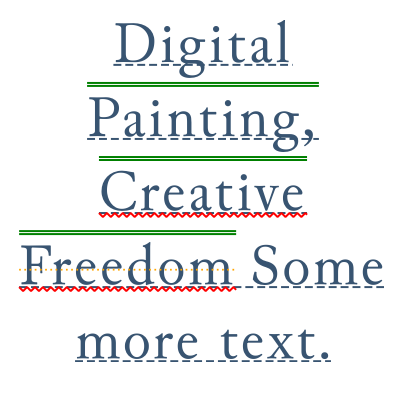
Geneste definities voor tekstdecoraties. Ofschoon zoiets gecompliceerd als dit alleen mogelijk is met de SVG source editor, kan men een vergelijkbaar resultaat zien als men een tekstdecoratie op paragraaf-niveau of voor een tekstreeks definieert.
Positie onderstrepen
Specificeer de positie van de onderstreping voor tekstdecoratie.
- Horizontaal:
Gedrag bij horizontale schrijfwijzen
- Automatisch
Onderstrepingen worden geplaatst overeenkomstig de metrics van het lettertype.
- Onderaan
Onderstrepingen worden uitgelijnd met de staart van de letter.
- Verticaal:
Gedrag bij verticale schrijfwijzen.
- Verticaal links
Onderstreping zal links van de karakters zijn, Bovenstrepen zijn rechts.
- Verticaal rechts
Onderstreping zal rechts van de karakters zijn, Bovenstrepen zijn links.
Mogelijkheden van Opentype
Enkele lettertypen hebben OpenType-functies zoals kerning, ligaturen en kleine hoofdletters, en kunnen ook een variëteit aan alternatieve glyphs (of zelfs contextuele glyphs) hebben zodat complexe samengestelde schriften correct renderen. Die laatste type is in het algemeen altijd ingeschakeld, en Krita geeft instel-mogelijkheden voor de eerste.
OpenType Functie-instellingen
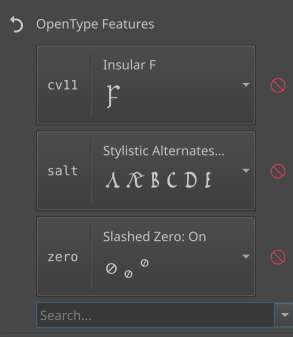
Enkele functies ingeschakeld in het middeleeuwse lettertype “Junicode”. De eerste vier letters hebben het “Opentype-functie tag”, wat de manier is waarop deze functies in het lettertype zijn opgeslagen. De naam kan in het lettertype worden opgehaald als het gedefinieerd is, indien niet gedefinieerd zal Krita zelf een naam geven.
Dit geeft precieze controle over Opentype-functies. Opentype-functies worden normaal gesproken gedefinieerd door tags, en of ze in dan uit geschakeld zijn. De keuzelijst geeft een lijst met mogelijkheden in het primaire lettertype in de Lettertypefamilie list.
Waar het zinvol is, wordt een klein voorbeeld gerendert, maar voor enkele functies is het moeilijk om deze weer te geven.
Tijdens het typen van een naam in het zoekvak zal een gefilterde lijst van alle officiële functies laten zien die overeenkomen met het zoekveld. Op deze manier kunnen functies die niet in het primaire lettertype voorkomen toch worden geselecteerd en ingeschakeld (wat handig is bij overerving).
Ga naar de Glyph Palet voor een alternatieve manier voor het selecteren van glyph-alternatieven in de geselecteerde tekst.
OpenType-functies, ofschoon ze wel overerven, overerven ze als een lijst. Als men voor een bepaald onderdeel algemene adviezen voor de hele tekst wil inschakelen, dan kan men beter Glyph-eigenschappen gebruiken.
Glyphs: ligaturen
Ligaturen in of uitschakelen en contextuele alternatieven op de tekst.
- Gemeenschappelijk
Schakelt liga en clig in, wat veel gebruikte ligaturen zijn.
- Discretionair
Schakelt dlig in , wat ligaturen zijn die meer decoratief zijn.
- Historisch
Schakelt hlig in, wat is bedoeld voor ouderwetse ligaturen.
- Contextuele alternatieven
Schakelt calt in, wat regelmatig wordt gebruikt bij schrift-lettertypen en decoratieve lettertypen om toepasselijke glyphs te selecteren afhankelijk van hun context.
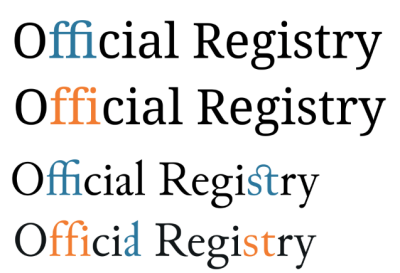
Ligaturen in “Noto Serif” en “Junicode”, met de ligaturen gemarkeerd in blauw, en het ontbreken van ligaturen gemarkeerd in oranje. “ffi” is een normale ligature in Noto Serif, en contextueel in Junicode, “st” is een voorwaardelijke ligature in Junicode en “al” is een historische ligature in Junicode.
Glyphs: positie
Schakel superscript of subscript in voor de tekst.
- Super
Schakelt superscript glyphs in.
- Sub
Schakelt subscript glyphs in.
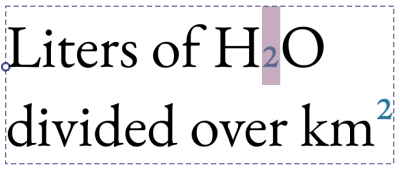
Toont sub en superscripts in het lettertype “EB Garamond”
Glyphs: numeriek
Getal-gerelateerde glyph-vormen op de tekst inschakelen.
- Stijl
- Normaal
Schakelt niet een van de stijlen in, toont de lettertype standaard.
- Lining
Verzoekt om figuren te gebruiken die in een tekst met hoofdletters passen, met de hulp van lnum.
- Oude stijl
Verzoekt om figuren te gebruiken die in een tekst met hoofdletters passen, met de hulp van onum.
- Proportioneel
- Normaal
Schakelt niet een van de stijlen in, toont de lettertype standaard.
- Proportioneel
Verzoekt om proportionele figuren te gebruiken, met de hulp van pnum.
- Tabel
Verzoekt om figuren in een tabel te gebruiken, met de hulp van tnum, Deze figuren gebruiken allemaal dezelfde advance.
- Fractie
- Normaal
Schakelt niet een van de stijlen in, toont de lettertype standaard.
- Diagonaal
Vervangt figuren gescheiden door een schuine streep door een juiste diagonale breukvorm. Als een lettertype de noemer en teller mogelijkheid heeft en de getallen zijn gescheiden door een ‘breuk-slash’ (U+2044), dan zal dit vervangen worden door de figuren met noemers voor de schuine streep en tellers na de schuine streep.
- Gestapeld
Vervangt figuren gescheiden door een slash (schuine streep) door een breukvorm met horizontale streep.
- Rangtelwoorden
Vervangt letters die volgen op figuren door hun rangtelwoorden.
- Nul met streep
vervangt het getal nul door een die een schuine streep in het midden heeft, die kan helpen om verwarring met soortgelijke glyphs zoals de letter ‘O’ te voorkomen.
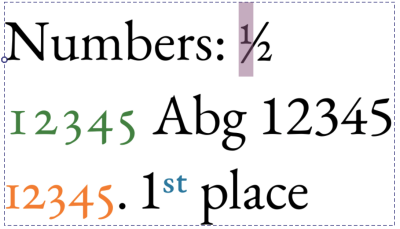
Toont numerieke opentype-functies in het lettertype “EB Garamond”. Geselecteerd is de breuk “1/2”, daarachter toont het ouderwetse stijl figuren voor “12345” in groen, deze ouderwetse stijl figuren in tabelvorm in oranje, en rangtelwoorden in blauw.
Glyphs: Hoofdlettergebruik
Schakelt opentype-functies in die gerelateerd zijn aan hoofdletters, zoals kleine hoofdletters.
- Normaal
Past geen speciale hoofdletters toe.
- Kleine hoofdletters
Zet hoofdletters om naar kleine letters. Standaard gebruikt bij afkortingen.
- Alle kleine hoofdletters
Zet alle tekst om naar kleine hoofdletters. Standaard gebruikt bij formele tekst.
- Zeer kleine hoofdletters
Zet hoofdletters om naar zeer kleine hoofdletters. Als alternatief voor kleine hoofdletters die exact dezelfde hoogte hebben als de x-hoogte.
- Alle zeer kleine hoofdletters
Zet alle tekst om naar zeer kleine hoofdletters.
- Hoofdletter voor titels
Zet hoofdletters om naar “hoofdletters voor titels”. Hoofdletters voor titels zijn meestal groter en meer dramatisch en daarom beter geschikt voor titels in plaats van gewone tekst.
- Letters met gelijke hoogte
Schakelt de functie voor letters met gelijke hoogte in.
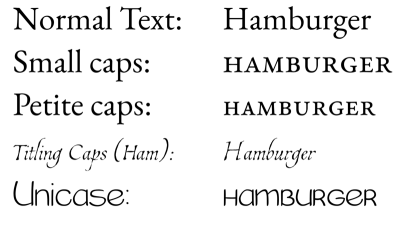
Hoofdletter gerelateerde opentype-functies in “EB Garamond” voor kleine en zeer kleine hoofdletters, “Estonia” voor Titel-hoofdletters en een aangepaste comic lettertype voor gelijke hoogte letter-functies.
Glyphs: Oost-Aziatisch
Glyph-vormen inschakelen gerelateerd aan Oost-Aziatische tekstindeling.
- Stijl
- Normaal
Gebruikt standaard lettertype.
- Traditioneel
Gebruikt traditionele glyphs.
- Vereenvoudigd
Gebruikt vereenvoudigde glyphs.
- JIS78
Gebruikt glyphs zoals opgegeven in JIS78
- JIS83
Gebruikt glyphs zoals opgegeven in JIS83
- JIS90
Gebruikt glyphs zoals opgegeven in JIS90
- JIS04
Gebruikt glyphs zoals opgegeven in JIS04
- Breedte
- Volledige breedte
Gebruikt glyphs met volledige breedte.
- Proportioneel
Proportionele glyphs gebruiken.
- Ruby
Schakelt glyphs bedoelt voor ruby-aantekeningen in.
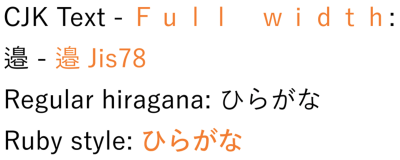
Toont de oost-Aziatische lettertype-varianten in oranje, met gebruik van het lettertype “Yu Gothic”. Volledige breedte is standaard gebruikt voor de verticale tekst, JIS78 refereert naar een Japanse industrie standaard dat bepaalde glyph-vormen specificeert.
Kerning van lettertype
Schakelt lettertype kerning aan of uit. Lettertype kerning maakt per-glyph tussenruimte aanpassingen mogelijk.
Richting
Richting stelt in of de tekst van links-naar-rechts of van rechts-naar-links gaat.
Unicode-Bidi
Unicode bidi geeft extra controle over hoe de richting van een verschuiving zou moet worden geïnterpreteerd. Standaard werkt het standaard algoritme goed, maar in enkele specifieke gevallen, kan het niet beslissen of een reeks zou moeten zijn links-naar-rechts of rechts-naar-links.
- Normaal
Er zijn geen besturingselementen ingevoegd. Alle tekst is hergesorteerd overeenkomstig zijn impliciete richting (die afkomstig is van de gebruikte karakters).
- Inbedden
De volgorde is richtinggevoelig ingebed. Dit betekent dat de bidirectionele algoritme aanneemt dat de expliciete richting dezelfde is als dat van Richting-eigenschap, maar dat volgorde van de tekst zelf wordt bepaald door de impliciete richting.
- Overschrijven
Overschrijven houdt in dat de geselecteerde sectie de huidige richting als de expliciete richting maar ook als de richting van de tekst zal gebruiken.
- Isoleren
Er zijn isolatie-besturingselementen ingevoegd. Isolatie houd in dat de bidirectionele algoritmes de reeks behandelen alsof het een compleet onafhankelijke paragraaf is. Daardoor heeft volgorde richting van de tekst geen invloed op de richting van de tekst buiten de tekenreeks.
- Isolering-overschrijving
Zowel Isolering als overschrijving worden toegepast. Dit houdt in dat de tekst expliciet door de richting wordt geordend, maar dat de genoemde ordening geen effect heeft.
- Platte tekst
De eigenschap richting wordt niet gebruikt en het bididirectionele algoritme zal in plaats daarvan de richting bepalen.
Unicode bidi is een van de eigenschappen die niet overerft. De reden hiervoor is dat het werkt doordat het ingevoegd wordt door het bidirectionele besturingsalgoritme aan het eind van de geselecteerde reeks.
Basislijn
Bij enkele traditionele schrijfwijzen, is het uitlijn-punt van de text met verschillende groottes afwijkend van het uitlijn-punt van Latijnse tekst. Vanwege compatibiliteit, zijn de lettertypen met deze schrijfwijzen meestal zo gemaakt dat de glyphs goed uitlijnen met Latijnse tekst. Om een meer traditionele uitlijning te bereiken, kan dominante basislijn en de basislijn-uitlijning worden gebruikt.
Deze functie zal proberen om data gecodeerd in de basislijn-tabel van het lettertype te gebruiken. Als deze data niet aanwezig is, dan zal de basislijn metrics worden gegenereerd.
De dominante basislijn en de basislijn-uitlijning delen de volgende instel-mogelijkheden:
- Alfabetisch
Gebruikt de basislijn die door de meeste schriften worden gebruikt. Standaard.
- Ideografisch
Gebruikt het ideografische ontwerp-vierkant en selecteert de onderkant in de horizontale mode en de linkerkant in de verticale mode.
- Midden
Gebruikt het ideografische ontwerp-vierkant en selecteert het verticale midden in de horizontale mode en het horizontale midden in de verticale mode.
- Hangend
De kopstreep uitlijnen zoals die in Noord-Brahmische schriften wordt gebruikt.
- Midden
Naar het centrum uitlijnen tussen de alfabetische basislijn en x-hoogte bij horizontaal indelen, in het verticale is dit de centrale basislijn.
- Wiskundig
Uitlijnen naar de mathematische basislijn, zodat operator-symbolen uitlijnen.
- Bovenkant van tekst
Uitlijnen naar de stokhoogte.
- Onderkant van tekst
Uitlijnen naar de staartlengte.
Dominante basislijn
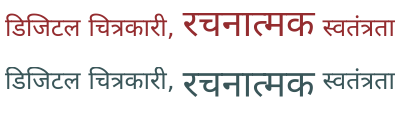
Bij In Noord-Brahmische schriften zoals Devanagari, worden letters met een verschillende grootte letters op de kopstreep uitgelijnd. In de voorbeelden hier, toont het bovenste voorbeeld het standaard gedrag, terwijl het onderste voorbeeld over de hele tekst Hangend gebruikt, wat de traditionele kopstreep-uitlijning oplevert.
De dominante basislijn bepaalt hoe tekst met een verschillende grootte worden uitgelijnd, het is ook de standaard voor Basislijn-uitlijning. Het kan een unieke waarde hebben, Auto, wat vertaald wordt naar Alfabetisch bij horizontaal en Midden bij verticaal Schrijfmodus.
Basislijn-uitlijning
Basislijn-uitlijning regelt hoe deze tekstreeks is uitgelijnd met de hoofdtekst. Het heeft een specifieke eigenschap Basislijn, wat inhoud dat het zijn waarde krijgt van de Dominante basislijn-eigenschap.
Basislijn-uitlijning overerft niet. In plaats daarvan zal de dochter-tekst proberen om uit te lijnen met de geselecteerde basislijn van de hoofdtekst.
Basislijnverschuiving
Basislijnverschuiving biedt het verplaatsen van de tekst weg van de basislijn, ofwel door voordefiniëren van waarden voor super en subscript of door een vaste hoeveelheid.
- Lengte
Verschuift tekst met een opgegeven hoeveelheid.
- Super
Verschuift tekst zodat het uitlijnt met de overgeërfde superscript offset. De betreffende waarde is afkomstig uit het lettertype.
- Sub
Verschuift tekst zodat het uitlijnt met de overgeërfde subscript offset. De betreffende waarde is afkomstig uit het lettertype.
De verschuiving van de basislijn wordt niet overgeërfd. In plaats daarvan worden verschuivingen bij elkaar opgeteld, zodat het volgende mogelijk is:
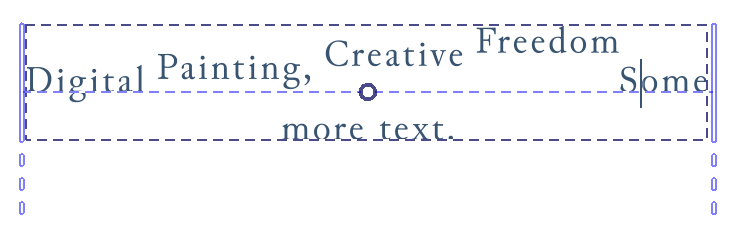
Geneste verschuivingen van superscript-definities. Dit is alleen mogelijk door de tekst te bewerken met de SVG source editor.
Witruimte
De CSS witruimte regelt hoe met meerdere spaties word omgegaan, en of de tekst naar de volgende regel doorloopt.
Standaard is deze eigenschap verborgen.
Taal
De taal van deze tekstvorm. Taal heeft affect op een aantal eigenschappen, zoals glyph-vorm, hoofd- en kleine letters en regelafbreking.
In het invoervak kan elke geldige BCP 47 code worden ingevoerd. Door op enter te drukken zorgt er voor dat Krita de code toevoegt. Tijdens het typen van de naam van een taal of de taalcode in het invoervak wordt er gefilterde zoektermen getoond.
Door op de pijl-omlaag te drukken krijgt men alle in deze sessie eerder gebruikte taalcodes en de lokaal opgeslagen taalcodes te zien. Door het keuzevakje voor een taalcode te selecteren, kan men aangeven dat deze voor toekomstige sessies bewaart moet worden.
Er is ook een Schrift-keuzelijst. Normaal gesproken is het mogelijk om het schrift te raden op basis van de taal en het land. Maar in sommige gevallen kunnen verschillende schriften voor dezelfde taal worden gebruikt, en soms is het belangrijkste schrift in de loop der jaren verandert. Met het schrift-keuzelijst kan in dergelijke gevallen het schrift ingesteld worden.
Vulling
De vulling kan op dit moment nog niet ingesteld worden in het paneel voor teksteigenschappen. Men zal het Gereedschap voor selectie van vormen moeten gebruiken om het voor een paragraaf in te stellen, of de voorgrondkleur wijzigen met een van de kleurenkiezers.
Streek
De streek kan op dit moment nog niet ingesteld worden in het paneel voor teksteigenschappen. Men zal het Gereedschap voor selectie van vormen moeten gebruiken om het in te stellen, of de streek handmatig instellen met de SVG Source Editor in de tekst-functie.
Paragraaf-eigenschappen
Paragraaf-eigenschappen zijn eigenschappen die alleen op een hele tekstvorm toegepast kan worden.
Schrijfmodus
Met de schrijfmodus kan ingesteld worden of tekst horizontaal dan wel verticaal gaat, en in het eerste geval, of het blok van rechts-naar-links gaat of van links-naar-rechts gaat.
Zie ook Richting.
Notitie
Een daarbij bijbehorende functie is “Tekst Oriëntatie”, waarmee horizontale tekst tijdens het typen naar horizontaal geroteerd kan worden als het is ingesteld op verticaal. Krita heeft op dit moment deze functie nog niet, maar het staat voor de toekomst wel in de planning.
Inspringen van tekst
Met tekst-inspringing kan bij het beging van de regel de tekst wat verder begingen. Werkt alleen als de tekst op de volgende regel doorloopt. Het belangrijkste besturing is een schuifknop waarmee de mate van inspring wordt geregeld. Er zijn nog twee meer geavanceerdere instellingen:
- Hangende inspringing
Deze inspringing geldt niet voor de startregel, maar in plaats daarvan op de daarop volgende regels.
- Inspringen na harde afbreking
Dit zorgt ervoor dat elke regel na een harde afbreking geldt als een startregel. Vaak gebruikt bij poetry.
Uitlijnen van tekst
Tekst-uitlijning regelt de uitlijning van het geselecteerde blok tekst.
De hoofdbesturing hiervan toont drie knoppen die bij start, middel en einde horen. Deze eigenschappen worden beïnvloed door de richting, wat voor rechts-naar-links betekent dat start hetzelfde is als rechts uitlijnen. De laatste knop is voor uitlijnen.
Nadat de geavanceerde instellingen is geopend ziet men het volgende:
- Uitlijnen van tekst
Hiermee kan de tekst-uitlijning ingesteld worden als tekst in een vorm is gegoten.
- Laatste uitlijnen
Als Uitlijnen van tekst is ingesteld op Uitgevuld, dan regelt dit wat het met de laatste regel moet doen.
- Tekstanker
Het tekstanker bepaalt hoe de tekst is geankerd, in plaats van uitlijning. Het lijkt in zoverre een beetje op Tekst-uitlijning in dat toestaat dat tekst van links naar rechts gaat, maar als Tekst-uitlijning is gebruikt in een ruimte, dan geld het Tekstanker voor het startpunt van de tekst. Men kan Tekstanker gebruiken om voor elke regel het anker in te stellen, zolang de tekst niet doorlopend is.
Dit houdt in dat er geen uitlijning is voor tekst die niet in een vorm is gegoten.
Standaard is deze eigenschap altijd zichtbaar, zelfs als deze niet ingesteld is.
Hangende punctuatie
Hangende punctuatie biedt het hangen van openende en sluitende punctuatie evenals komma’s. Deze implementatie implementeert alleen de Oost-Aziatische stijl van hangende punctuatie.
- Eerste hangend
Openende punctuatie zoals aanhalingsteken openen (”) of haakje openen ( bij de start van een paragraaf moeten hangen.
- Regeleinde
Hiermee is het mogelijk om komma’s en punten aan het eind van elke regel te hangen.
- Laatste hangend
Sluitende punctuatie zoals aanhalingsteken sluiten (”) of haakje sluiten ) bij het eind van een paragraaf moeten hangen.
Tab-grootte
Tab-grootte bepaalt de grootte van de tabulatie karakters. Tabulatie karakters (ingevoegd met with tab) zijn een spatie-type die aan de dichtstbijzijnde veelvoud van de referentie grootte vastklikt. Het wordt meestal gebruikt om kolommen met informatie uit te lijnen zonder dat er tabellen worden gebruikt.
Tab-grootte heeft een unieke eenheid: Sp. Deze houdt in dat de tab-grootte de huidige grootte van de spatie als eenheid.
Tekstweergave
Tekstweergave bestuurt de ‘hinting’ en de renderingmethode voor de tekstvorm.
- Geoptimaliseerde snelheid
De hinting-stijl voor monochrome bitmaps wordt gebruikt, en anti-aliasing is uitgeschakeld. Krita zal er ook voor zorgen dat de glyphs op de dichtstbijzijnde pixel worden vastgepind. dit zorgt ervoor dat pixel art lettertypen er zo goed uit ziet, maar ook dat het zo snel als mogelijk gerenderd wordt.
- Leesbaarheid optimaliseren
Bij verticale schrijfwijzen, is ‘compleet’ hinting ingeschakeld, terwijl bij horizontale schrijfwijzen, hinting alleen verticaal toegepast wordt. Krita zal daarnaast in deze richtingen de relevante metrics toepassen.
- Geometrische precisie
Er wordt helemaal geen hinting uitgevoerd.
- Automatisch
Hetzelfde als Geometrische Precisie.
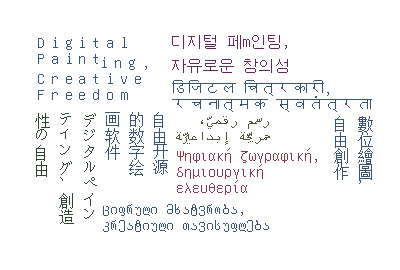
De slogan van Krita in verschillende schrijfwijzen, het gebruikte lettertype is het “Unifont” pixel lettertype. Door Geoptimaliseerde snelheid te gebruiken, weet Krita dat het niet alleen anti-aliasing moet uitschakelen, maar dat het ook moet proberen om de glyphs zodanig moet vastklikken dat Basislijnverschuiving, Afstand tussen letters en Lijnhoogte er goed uit zullen zien.
Tekstgebied
Deze eigenschappen zijn gerelateerd aan Tekst in Vorm.
- Vormopvulling
Dit is de opvulling die is berekent in de Binnen Vormen.
- Vormmarge
Dit is de marge rondom de “Aftrek” vormen die wordt toegevoegd voordat ze worden verwijderd van de “Binnen” vormen.
Voorinstellingen van stijl.
Met Stijlvoorinstellingen. kan voor later gebruik combinaties van eigenschappen opgeslagen worden. Ga naar die pagina voor meer informatie over het bewerken van stijl-instellingen.
Met  kan een item voor bewerken geselecteerd worden, terwijl dubbelklikken met de actieve eigenschappen toepast op de tekst.
Met de knoppen onderaan kan de stijl-instellingen gewijzigd worden:
- Stijl-instellingen importeren
Importeert een SVG met daarin een definitie voor een stijl-instelling.
- Stijl-instellingen verwijderen
Schakelt een geselecteerde stijl-instelling uit.
- Stijl-instellingen creëren
Creëert een stijl-instelling vanuit de huidige instellingen.
- Stijl-instelling kopieën
Kopieert de geselecteerde stijl-instelling en toont het in het bewerk-venster.
- Voorinstelling bewerken
Bewerkt de geselecteerde stijl-instelling.