
Color
Similar to the Adjust filters, the color filters are image wide color operations.
Color to Alpha
This filter allows you to make one single color transparent (alpha). By default when you run this filter white is selected, you can choose a color that you want to make transparent from the color selector.
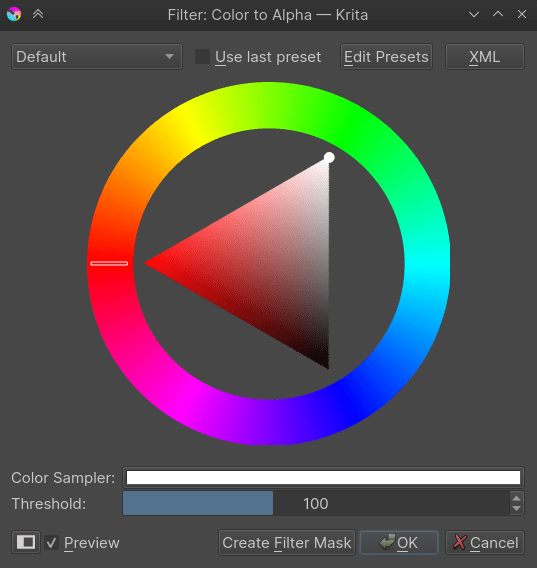
The Threshold indicates how much other colors will be considered mixture of the removed color and non-removed colors. For example, with threshold set to 255, and the removed color set to white, a 50% gray will be considered a mixture of black+white, and thus transformed in a 50% transparent black.
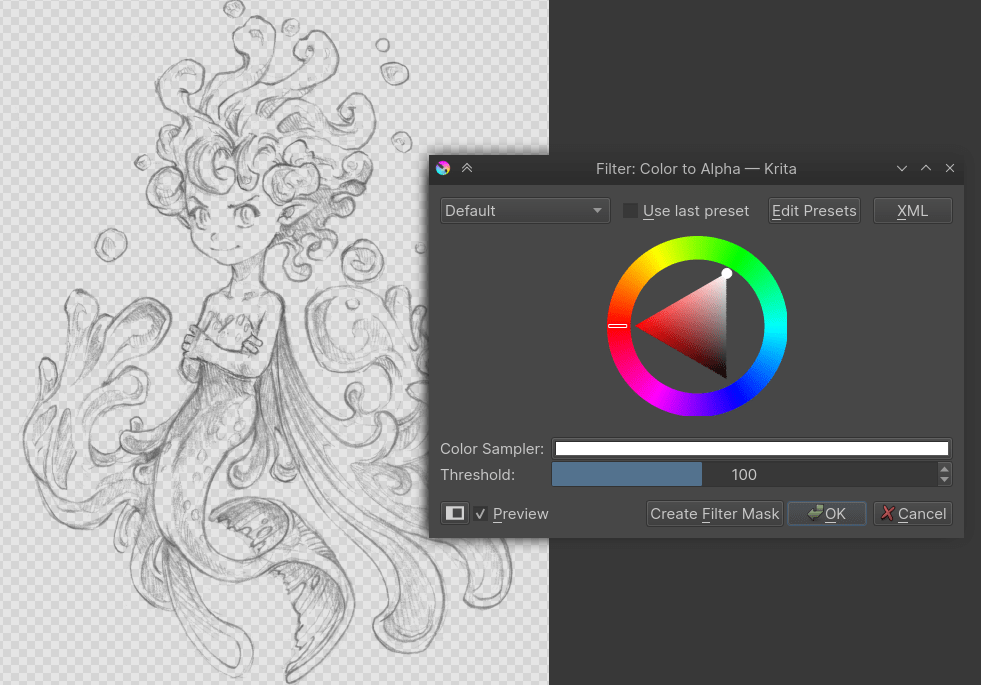
This filter is really useful in separating line art from the white background.
Fast Color Overlay
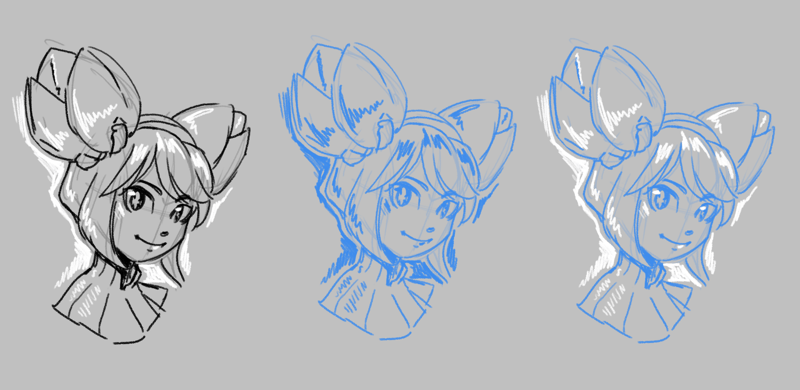
Left: original sketch. Center: Sketch with Fast Color Overlay filter and Normal blending, Right: Sketch with Fast Color Overlay filter and Tint blending.
Added in version 5.3.
Tints an image with a single color. It is similar to HSV/HSL Adjustment with Colorize enabled, but much faster.
- Color
The color to tint the image with.
- Blend Mode
The blend mode to use to mix the color with the existing image.
- Normal
This applied the color like a regular layer onto the input. This is useful for images where you want to have all opaque pixels the specified color, asif the layer were a single-color layer.
- Tint
Interpolates between white and the current color. This is useful for images where you want to preserve any mid-tones.
- Custom
Select any other blending mode you prefer.
- Opacity
How opaque or transparent the selected color should be.
Color Transfer
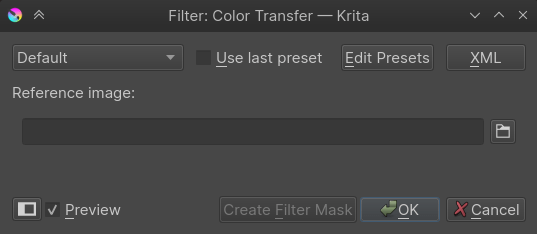
This filter converts the colors of the image to colors from the reference image. This is a quick way to change a color combination of an artwork to an already saved image or a reference image.
Maximize Channel
This filter checks for all the channels of a each single color and set all but the highest value to 0.
Minimize Channel
This is reverse to Maximize channel, it checks all the channels of a each single color and sets all but the lowest to 0.
Propagate Colors
This filter propagates, extends, the colors of [semi]opaque regions into the nearby fully transparent regions. This can be useful, for example, to automatically fill those areas in a way that there is a continuity in terms of color.
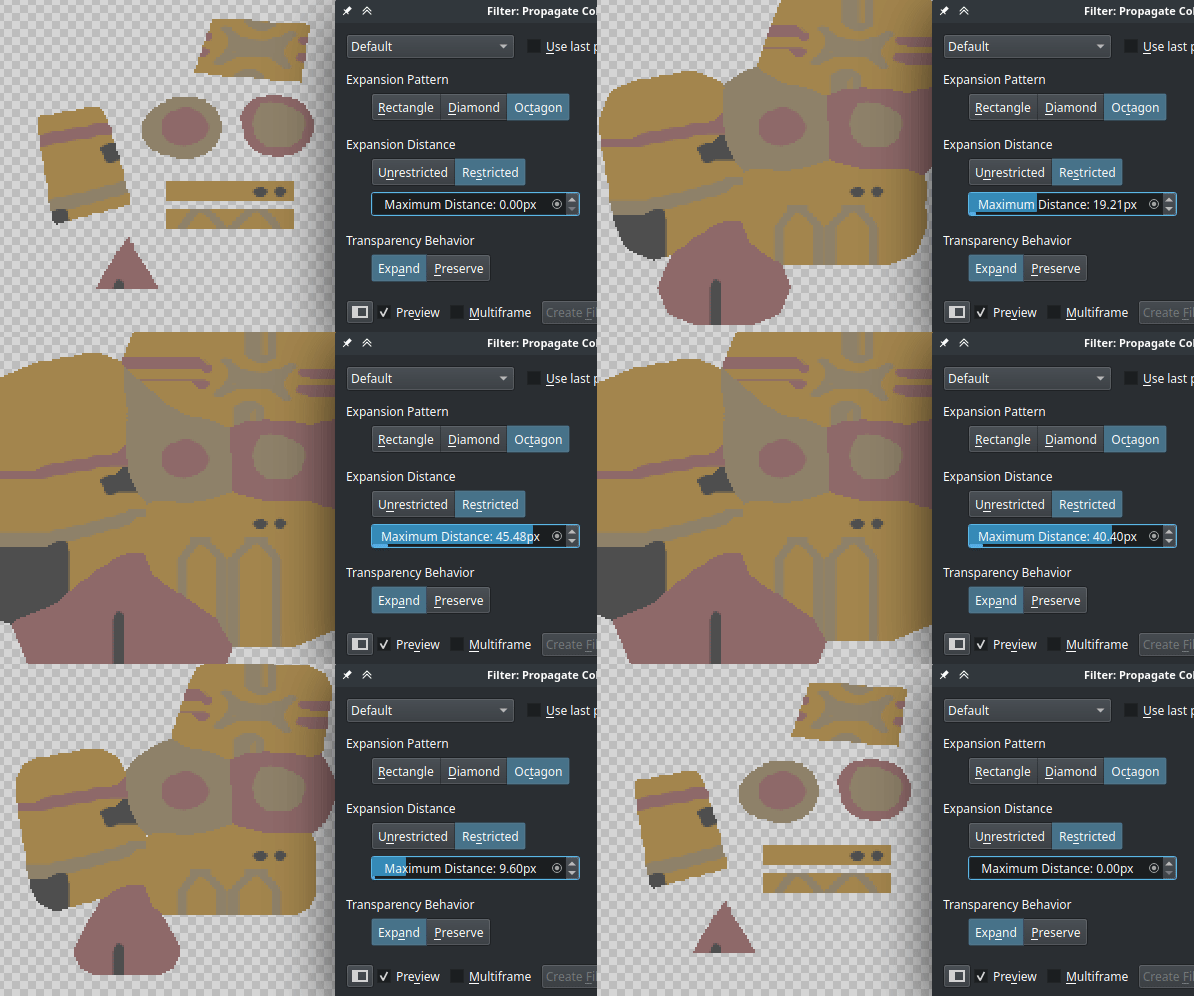
- Expansion Pattern
This option allows to choose in which directions the pixels should propagate.
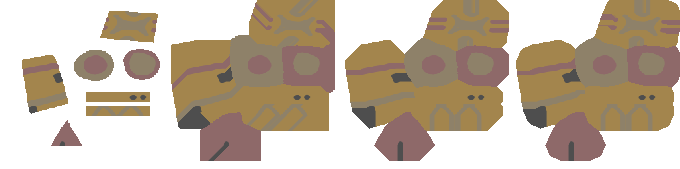
From left to right: original image; rectangle shaped expansion (expand equally to orthogonal and diagonal directions); diamond shaped expansion (expand only to orthogonal directions); octagon shaped expansion (expand to orthogonal directions and a bit less to the diagonal directions).
- Expansion Distance
The pixels can be propagated only up to a given distance, or indefinitely, so that all the transparent areas are covered end-to-end.
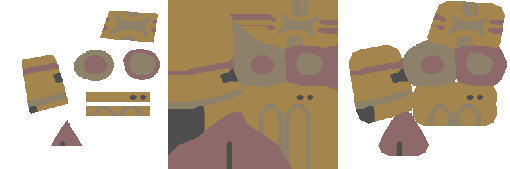
From left to right: original image; expanded image with unrestricted distance; expanded image with restricted distance.
- Transparency Behavior
This option allows control over whether the alpha channel should also be expanded or remain untouched.
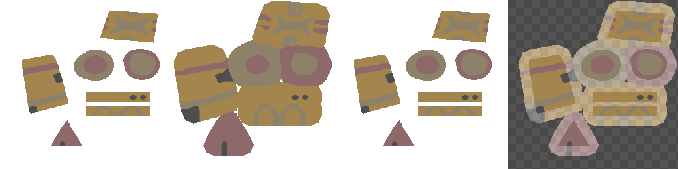
From left to right: the original image; the expanded image with expanded alpha channel; the expanded image preserving the alpha channel (note that it looks like the original one, although the color components were actually propagated into the transparent areas); image demonstrating the behavior of the previous example by applying a levels filter that makes the transparent areas semi-opaque to clearly see how the colors were truly propagated.